Viewing Course Logs (Admin)
Abstract
This article is a guide for Course Admins on accessing course logs, along with details of the information that can be seen in the logs. If you are an Organization Admin, please visit our article titled Viewing Organization Logs (Admin). If you are an Instructor, please visit our article titled Accessing Logs as an Instructor.
How to View Logs as a Course Admin
Course Admins can access logs for all courses within an organization.
To view logs, Course Admins can click the View Logs button within the left-hand sidebar.
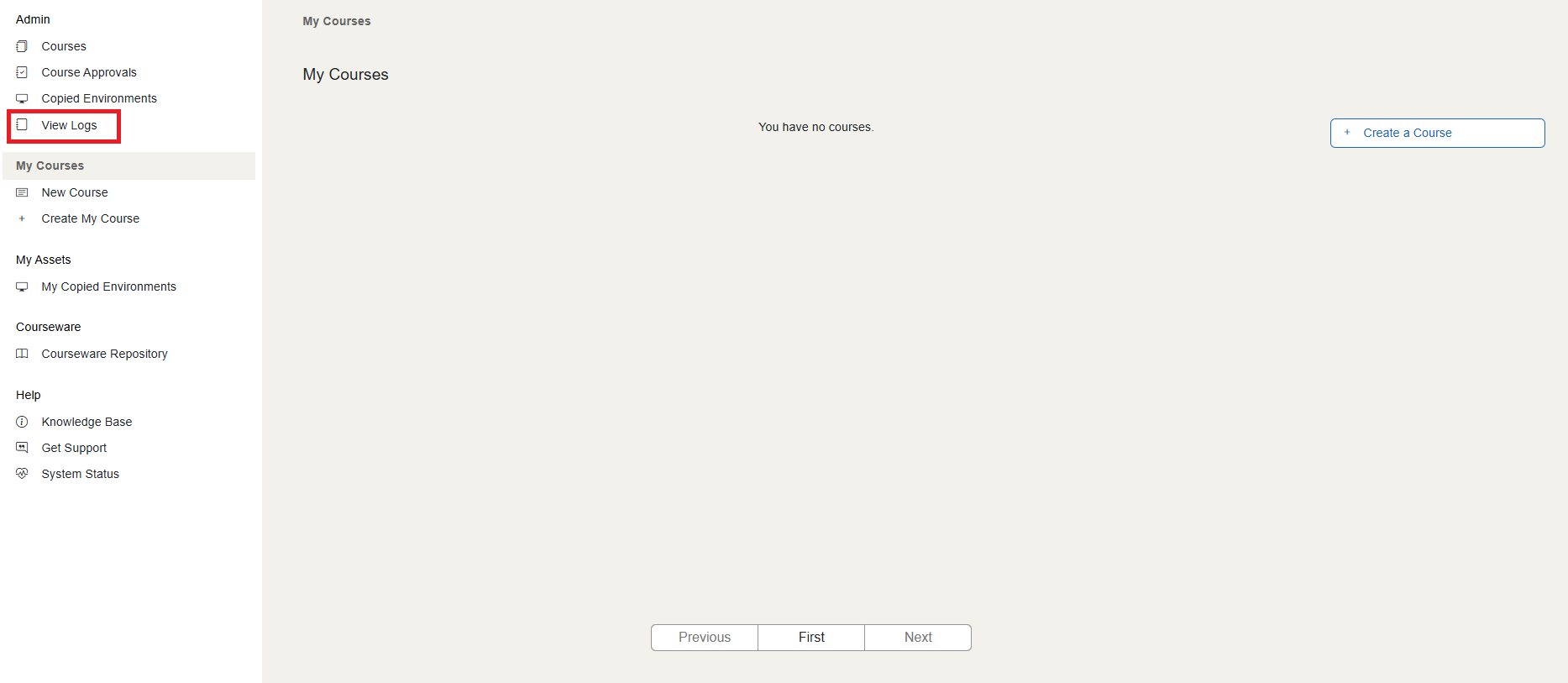
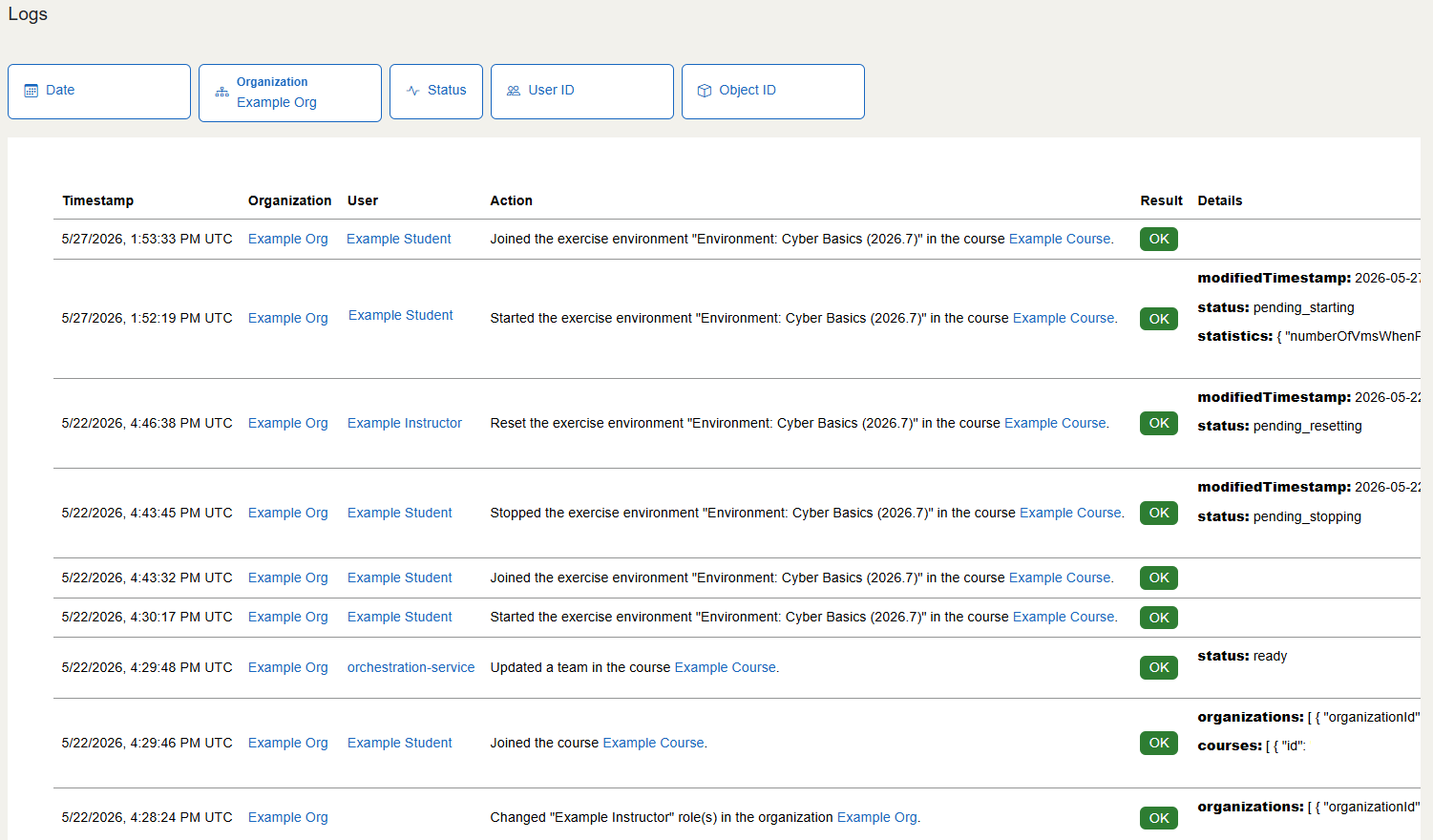
This will take you to the Logs page, where you will see a table of information recorded about actions taken in courses within the organization.
Logs Table
The table on the Logs page contains the following columns:
- Timestamp: the date and time (in UTC) of the action taken
- Organization: the organization that the course is in
- User: the user that performed the action
- Action: a brief description of the action taken
- Result: indicates whether the action completed successfully
- Details: provides more technical details on the action and the exercise affected
Note
Please note that in the "User" column, you may see names like orchestration-service, job-api, or sync-service. These are automated processes that act in courses that the U.S. Cyber Range records in logs to make sure all actions that occur are viewable.
Above the Logs table are various filter fields that can be used to sort through log information.
- Date: allows for searching a specific date or a range of dates
- Organization: allows for searching for logs from specific organizations
- Status: allows for searching between successful and failed actions
- User ID: allows searching for actions performed by a specific user, using the User ID from their profile page
- Object ID: allows searching for a specific course, using its course ID

What Information is Recorded in Course Logs?
While the U.S. Cyber Range does not keep track of activity that happens within a VM, Course logs track changes to Cyber Range entities like users and exercise environments.
Examples of activities that can be seen in course logs include creation of courses, adding and deleting exercise groups within courses, requesting support in a course, users joining or being removed from courses, and users interacting with exercise environments in courses (starting, joining, stopping, and reinstalling).
Have a Question? Contact Support
We're here to help you. If you still have questions after reviewing the information above, please feel free to submit a ticket with our Support Team and we'll get back to you as soon as possible.
Thank You for Your Feedback!