How Do Students View Diagnostic Reports?
Abstract
This article will explain what diagnostics are in the context of the U.S. Cyber Range and how students can view their diagnostic report. If you need your exercise environment reinstalled, please reach out to the instructor of your course. If your instructor has enabled reinstall for students, please refer to our Can a Student Reinstall Their Exercise Environment? section for more information.
What are Diagnostics?
Diagnostics are automatically generated by our system after an exercise environment has gone into error state, and are available to help you determine what went wrong in the environment. The goal of the diagnostics report is to educate users so they can avoid locking themselves out of their environment or causing the system to become unstable in the future.
Important
Please note that diagnostics are processed by AI, and are a best guess at the cause based on areas the Cyber Range has found common problems. It can make mistakes, especially in unusual circumstances.
How to View Report
-
Click on your exercise environment that is experiencing an error.
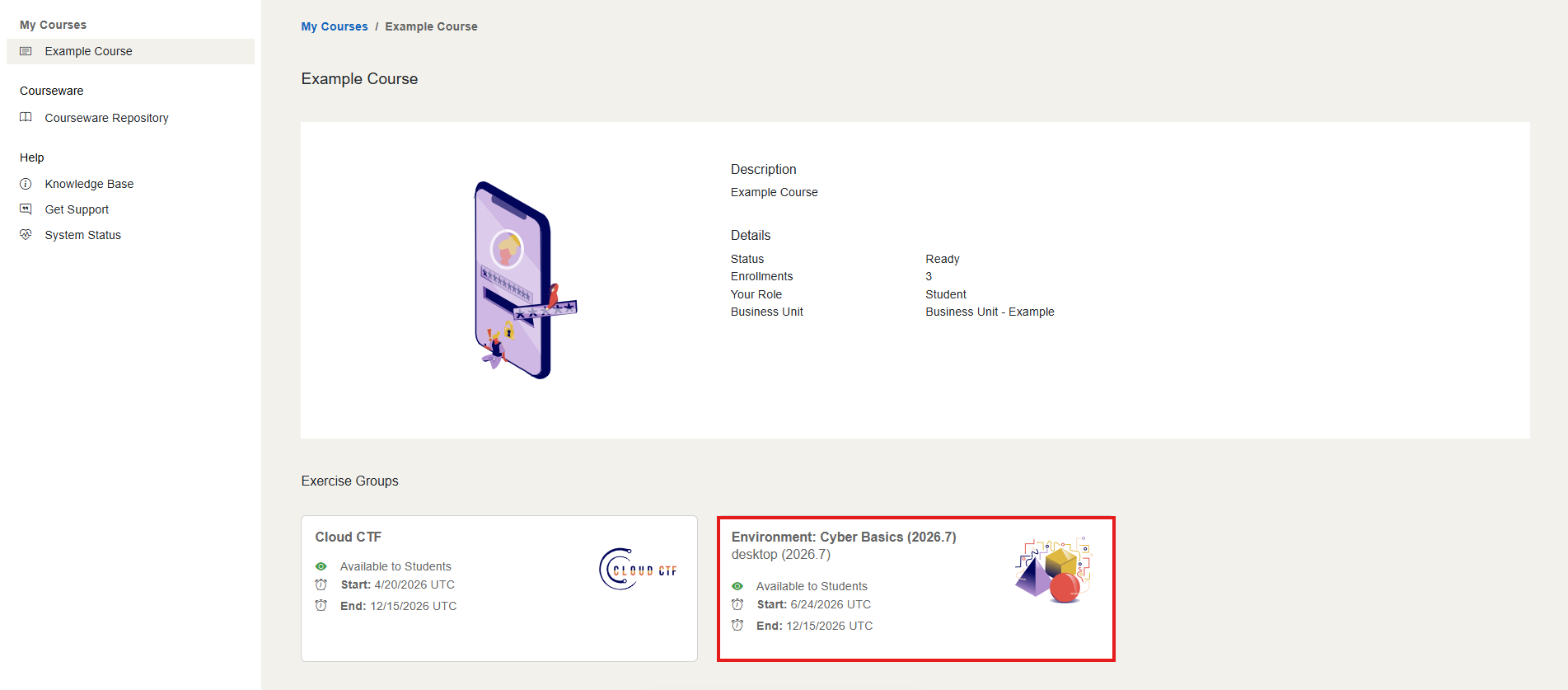
-
Next, click the View Report link.
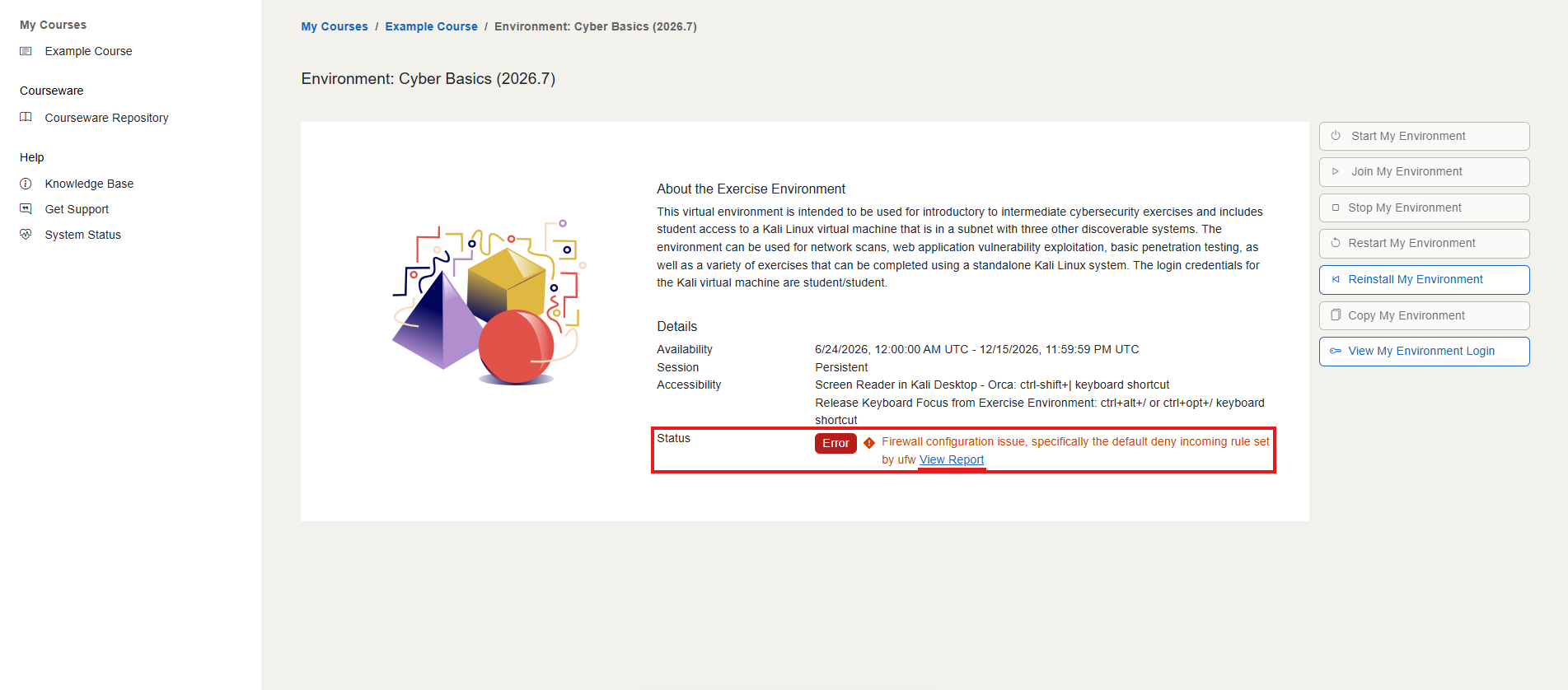
-
On the Diagnostic page, you will receive the diagnosis and details of what led to the error.
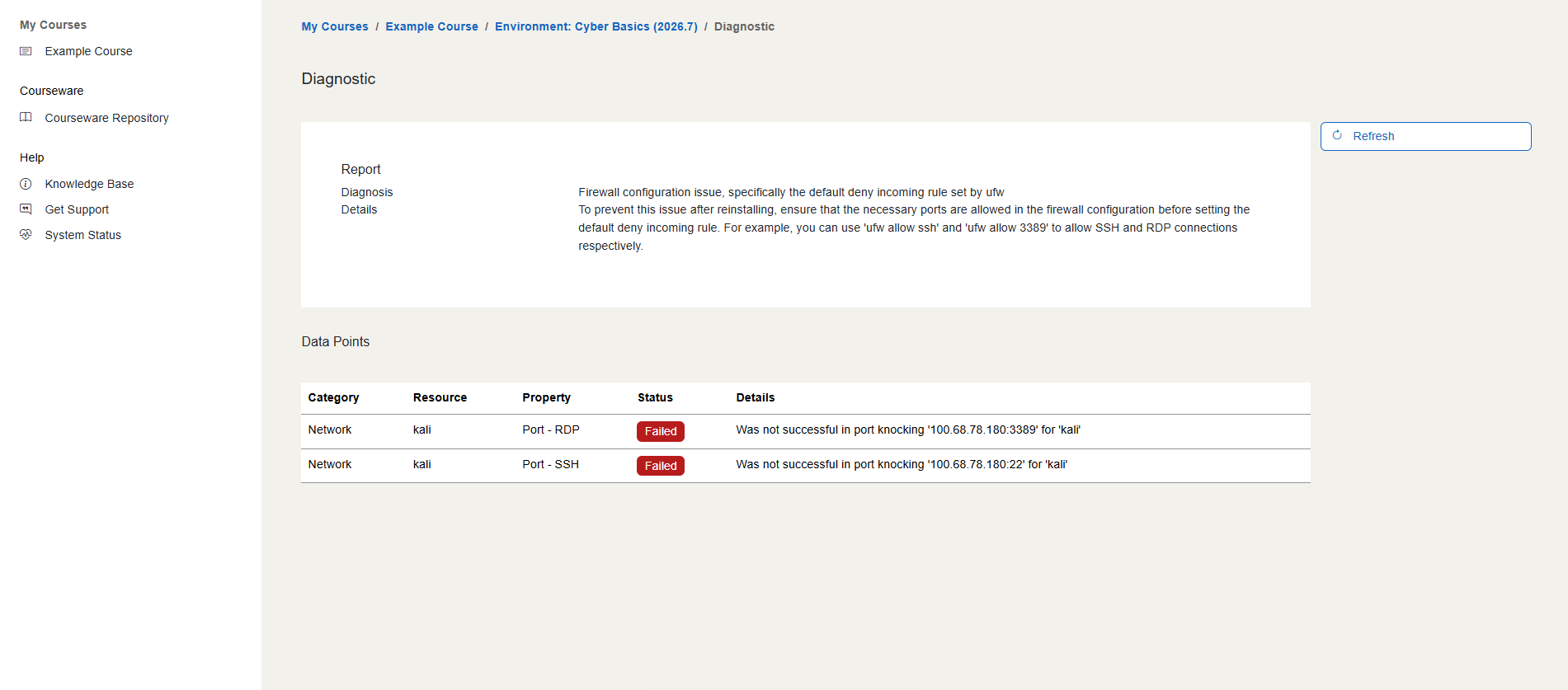
Have a Question? Contact Support
Important
Students, please reach out to your instructor who can submit a ticket to our Support Team on your behalf.
We're here to help you. If you still have questions after reviewing the information above, please feel free to submit a ticket with our Support Team and we'll get back to you as soon as possible.
Thank You for Your Feedback!